Me.WindowState = FormWindowState.Normal
Me.Show ( )
End Sub
End Class
''''启动程序
Module Module1
Sub Main ( )
Application.Run ( new Form1 ( ) )
End sub
End Module
Form2.vb经过了下列命令编译、连接后:
Vbc /r:system.dll /r:system.windows.froms.dll /r:system.drawing.dll form2.vb
就可以得到Form2.exe,下图是From2.exe运行的界面:
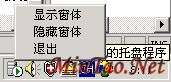
图01:托盘程序运行界面01
动态托盘程序的编写过程
动态托盘程序中的托盘图标之所以能够呈现动画效果,是因为程序中的一个定时器组
件每隔一段时间都不断切换托盘图标。本文是通过二个图标的切换来表现动态效果的,读者如果有好的、连续的图标,也可以设定多个图标的切换,而这只需要修改Timer1定时器中的"Tick"事件中的代码就可以了。下面是此动态托盘程序的具体编制步骤:
要创建程序中的实例和变量:
Friend WithEvents NotifyIcon1 As System.Windows.Forms.NotifyIcon
    Friend WithEvents ContextMenu1 As System.Windows.Forms.ContextMenu
    Friend WithEvents MenuItem1 As System.Windows.Forms.MenuItem
   Friend WithEvents MenuItem2 As System.Windows.Forms.MenuItem
    Friend WithEvents MenuItem3 As System.Windows.Forms.MenuItem
    ''''创建Icon实例,用以切换图标
    Friend Icon1 = New Icon ( "icon1.ico" )
    Friend Icon2 = New Icon ( "icon2.ico" )
    ''''为不同图标的切换提供标识符
    Dim BeginFlag As Boolean = True
    ''''定时器
    Friend WithEvents Timer1 As System.Windows.Forms.Timer
初始化实例:
Me.components = New System.ComponentModel.Container ( )
        Me.NotifyIcon1 = New System.Windows.Forms.NotifyIcon ( Me.components )
        Me.ContextMenu1 = New System.Windows.Forms.ContextMenu ( )
        Me.MenuItem1 = New System.Windows.Forms.MenuItem ( )
        Me.MenuItem2 = New System.Windows.Forms.MenuItem ( )
        Me.MenuItem3 = New System.Windows.Forms.MenuItem ( )
        Me.Timer1 = New System.Windows.Forms.Timer ( Me.components )
        Me.NotifyIcon1.ContextMenu = Me.ContextMenu1
        Me.NotifyIcon1.Text = "VB.NET的托盘程序"
        Me.NotifyIcon1.Visible = True
	''''设定托盘程序托盘区位置显示缺省图标
        Me.NotifyIcon1.Icon = Icon1
	''''在ContextMenu实例中加入菜单项
        Me.ContextMenu1.MenuItems.Add  (  Me.MenuItem1  )
        Me.ContextMenu1.MenuItems.Add  (  Me.MenuItem2  )
        Me.ContextMenu1.MenuItems.Add  (  Me.MenuItem3  )
        Me.MenuItem1.Index = 0
        Me.MenuItem1.Text = "开始转动"
        Me.MenuItem2.Index = 1
        Me.MenuItem2.Text = "停止转动"
        Me.MenuItem3.Index = 2
        Me.MenuItem3.Text = "退出"
        Me.AutoScaleBaseSize = New System.Drawing.Size ( 6 , 14 )
        Me.ClientSize = New System.Drawing.Size ( 292 , 273 )
        Me.Name = "Form1"
        Me.ShowInTaskbar = False
        Me.Text = "VB.NET之WinForm编程动态托盘程序"
        Me.WindowState = System.Windows.Forms.FormWindowState.Minimized
定义托盘程序中菜单项对应的事件,以及具体的处理方法:
''''开始托盘图标的转动
    Private Sub MenuItem1_Click ( ByVal sender As System.Object ,
    ByVal e As System.EventArgs )  Handles MenuItem1.Click
        Timer1.Enabled = True
    End Sub
    ''''停止托盘图标的转动
    Private Sub MenuItem2_Click ( ByVal sender As Object ,
    ByVal e As System.EventArgs )  Handles MenuItem2.Click
        Timer1.Enabled = False
    End Sub
    ''''关闭程序,清除托盘资源
    Private Sub MenuItem3_Click ( ByVal sender As Object ,
    ByVal e As System.EventArgs )  Handles MenuItem3.Click
        NotifyIcon1.Dispose ( )
        Application.Exit ( )
    End Sub
    ''''根据标识符,来确定托盘图标类型
    Private Sub Timer1_Tick ( ByVal sender As Object ,
    ByVal e As System.EventArgs )  Handles Timer1.Tick
        If BeginFlag = True Then
            NotifyIcon1.Icon = Icon2
            BeginFlag = False
        Else
            NotifyIcon1.Icon = Icon1
            BeginFlag = True
        End If
    End Sub
至此编写动态托盘程序的主要步骤就介绍完了,和上面的静态托盘程序相同,在运行此程序的时候必须保证此程序当前目录存在二个Icon文件,并且名称为"Icon1.ico"和"Icon2.ico"。这里并没有给出动态托盘程序的完整代码清单,读者只需要把上面这些关键步骤的代码覆盖到Form2.vb中的相应位置就可以得到动态托盘程序的源程序文件Form3.vb。这应该不算很难,下面是编译Form3.vb的命令:
Vbc /r:system.dll /r:system.windows.froms.dll /r:system.drawing.dll form2.vb
成功编译、连接后就得到Form3.exe,下图是Form3.exe的运行界面:
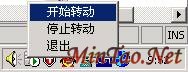
图02:托盘程序运行界面02
总结
托盘程序是现在比较流行的一种程序类型。本文中介绍的二个程序,也是托盘程序中比较典型的二个,希望对各位了解并掌握编写托盘程序有所帮助。
上一页 [1] [2] |


